 AssetCenter
Managing locations
The location record: overview, current assignments, spaces, the timeline, and everything under the actions button.
Last updated
Overview
The Overview section provides complete details of the location.
The first row displays the type and status.
The second row highlights the location's name.
The third row displays the address.

Current assignments
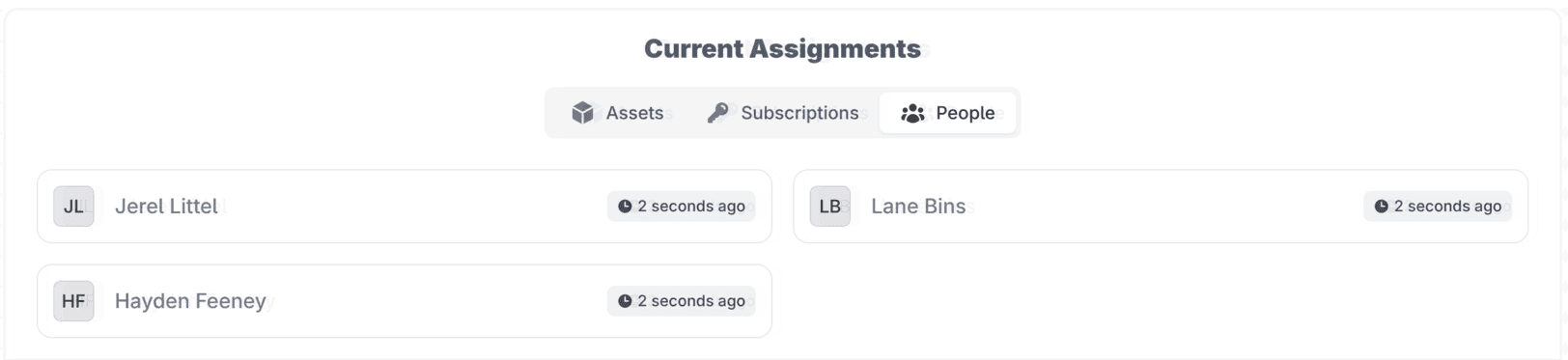
The current assignments section lets you toggle between the assets, subscriptions and people assigned to this location.
Along with the name, this section includes a badge indicating how long it has been since the assignment was made.
Spaces
If you add spaces to the location from the actions button, the Spaces section appears below the current assignments. Spaces are sub-locations inside a location. They can be anything from a room, to a floor, to anything else you need. Spaces can be assigned to other records, allowing more granularity on where an asset is.

Timeline
The timeline documents everything that has been associated with this location: every asset, subscription and person. Every activity is recorded in one place, and each timeline entry can be edited with a single click.
Comments and attachments are supported on all timeline entries. Click any item to edit it, and you can add comments or upload attachments. Timeline items with comments show a comment bubble icon, and items with attachments show a paperclip icon on the activity line.

Actions button
The actions button in the top right corner is how you manage the location. This is purposely the only button on the page: any action you need to perform on the location is done from the actions button.

The To-do button records a to-do on that location. If something needs to be completed in the future by you or someone else, this is where you create it. For example, your organization is leasing an office and you need a reminder to contact the leasing company before the lease expires.
The Quick Note button is simple and straightforward. It creates a timeline entry that is a simple note. Use it for recording informational, one-off events on the location.
The Set Active / Inactive flag changes the status of the location. It does not change any assignments.
Under the assignments dropdown you can update the current assignments of assets, subscriptions and people.
Under the lifecycle dropdown, Edit Location Details is where you update the base details of the location, such as name and address.
The Add Space button creates a sub-location for this location. See the Spaces section above for more details.