 AssetCenter
Subscriptions, people and locations in the app
Work with subscriptions, people and locations in AssetCenter for iPhone and iPad: their menus, billing and contracts, assignments, spaces and timelines.
Last updated
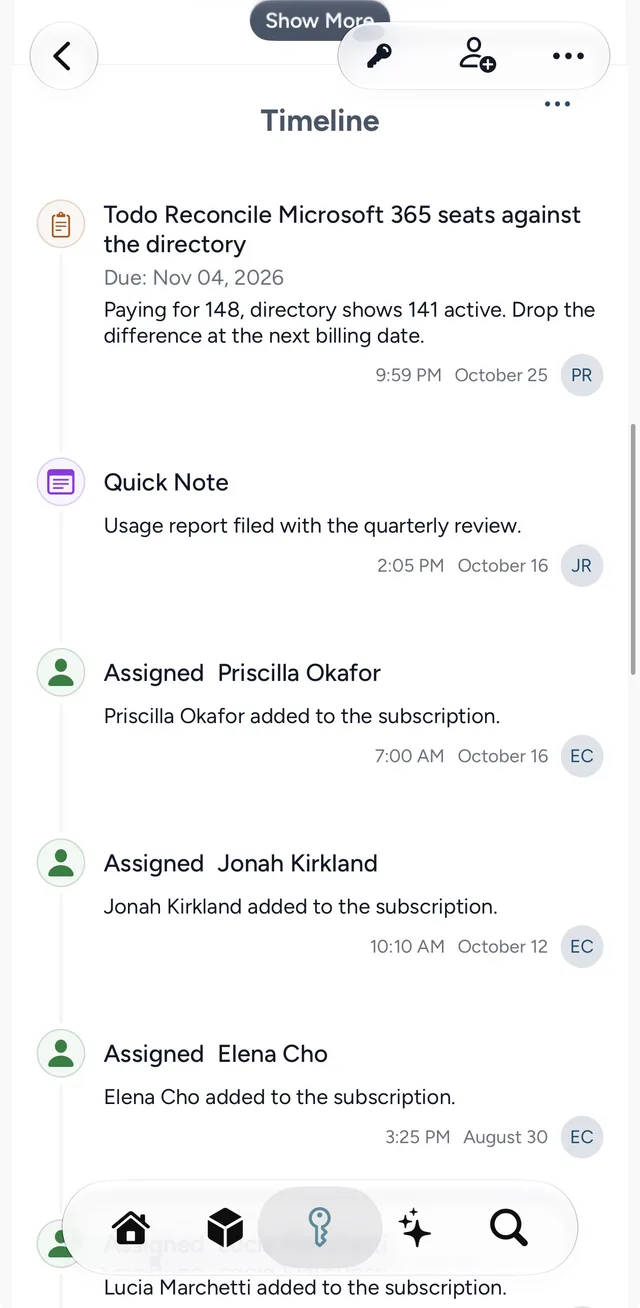
Subscriptions, people and locations open from their lists, from Search, and from the records they are assigned to. Each page works like an asset record: details at the top, current assignments, a timeline below, and menus in the top right corner. Notes, events and to-dos have the same comments and attachments tabs.
Subscriptions
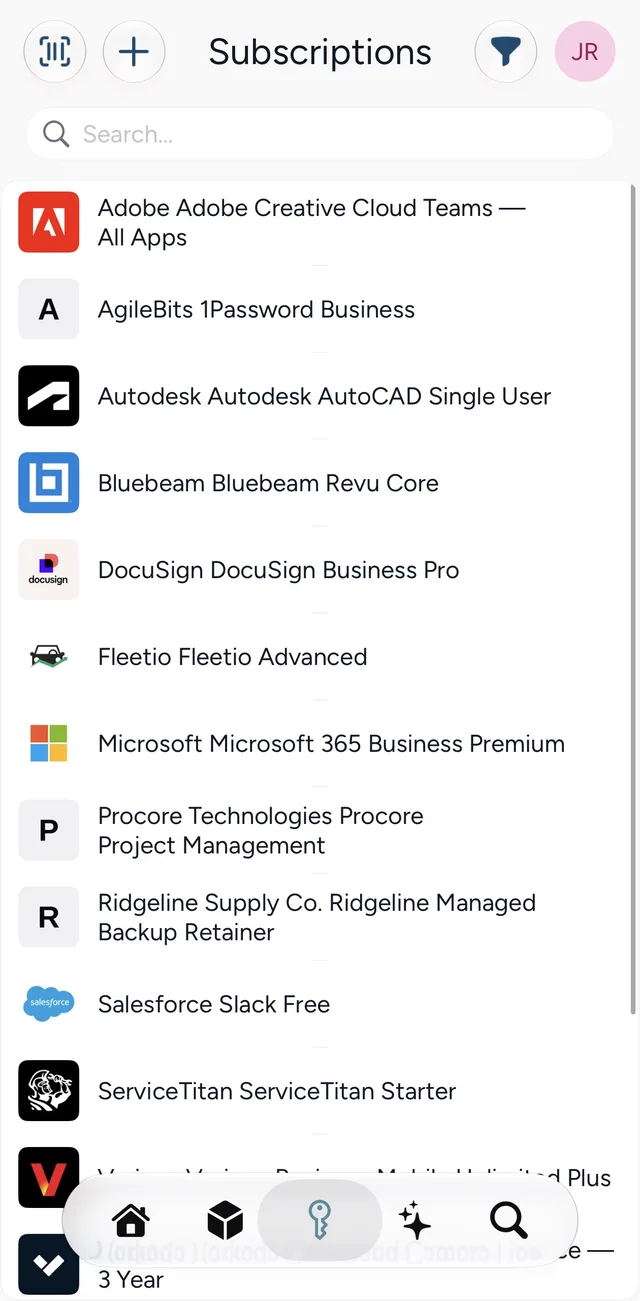
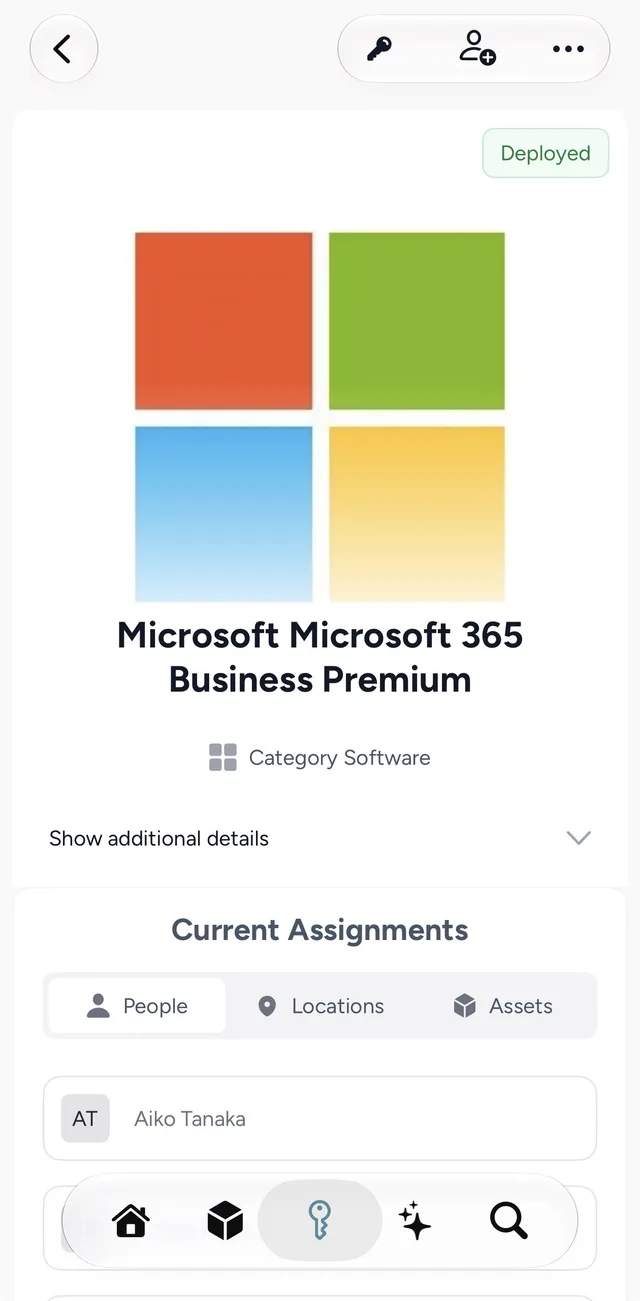
Show additional details opens the billing and contract details: billing type, plan, licenses, total cost, billing frequency, contract term, start and end dates, and whether it renews automatically. Current Assignments switches between the People, Locations and Assets using the subscription.
The key is for the subscription itself:
- Edit Subscription Details: category, vendor, name, plan and custom fields.
- Quick Note and To-do.
- Update Billing, or Update Purchase for a one-off purchase, when the price, license count or billing frequency changes.
The person with a plus assigns Assets, People or Locations to the subscription.
The ••• is for the subscription's lifecycle:
- Add Contract, or Renew Contract, with the contract term, start and end dates and whether it renews automatically.
- Pause and Unpause, for a subscription you've stopped using for a while. Choose whether billing stops, continues or changes while it's paused.
- Cancel, which ends a recurring subscription and removes its assignments, or Retire for one that isn't recurring.
- Delete Subscription, which removes it and its history permanently.
A cancelled or retired subscription keeps its history. Its ••• offers Undo Cancel or Undo Retire and Delete Subscription, and nothing can be assigned to it.
The timeline's ••• adds Billing and Contracts filters to the usual ones. For more on subscriptions, see managing subscriptions.
People
A person's page shows their Department, and Show additional details opens their title, address, email, phone number, organization, and what their assets and subscriptions cost. Current Assignments switches between their Assets, Subscriptions and Locations. The camera button manages their photo, as on an asset.
The person icon holds Edit Person Details, Quick Note, Event and To-do. Some events change the person's status when they are saved; the event tells you so before you save.
The ••• holds:
- Assign Assets, Assign Subscriptions and Assign Locations.
- Set Inactive for someone who has left, or Set Active.
- Delete Person, which removes the person and their history permanently.
Before someone leaves, their page is the quickest check of what they still have. See managing people.
Locations
A location's page shows its Type, its Address, a Temporary badge for a temporary site, and a Spaces row. Current Assignments switches between its Assets, Subscriptions and People.
The map pin holds Edit Location Details, Quick Note, Event and To-do. The ••• holds Assign Assets, Assign Subscriptions and Assign People, Set Inactive or Set Active, Add Space, and Delete Location.
Spaces
Spaces are the rooms, bays, shelves or floors inside a location, which assets can be assigned to as a sublocation. Tap the Spaces row on the location to see them.
- + (Add Space) adds one, with a Name, Description, Type and Address.
- Tap a space to change it.
- Delete removes one. Turn on Permanently delete this space and confirm.
See managing locations for how locations and spaces fit together.
Assigning from a person, location or subscription
The assign options open a sheet listing what is already assigned. Pick a record in the Add picker at the top to add it, or tap Remove beside one already there. Each row shows whether it will be added, removed or left alone, and Undo changes your mind. Nothing changes until you tap Save.