 AssetCenter
Home and to-dos
Home in AssetCenter for iPhone and iPad: shortcuts, dashboard cards and their options, customizing which cards appear, and working through your to-dos.
Last updated
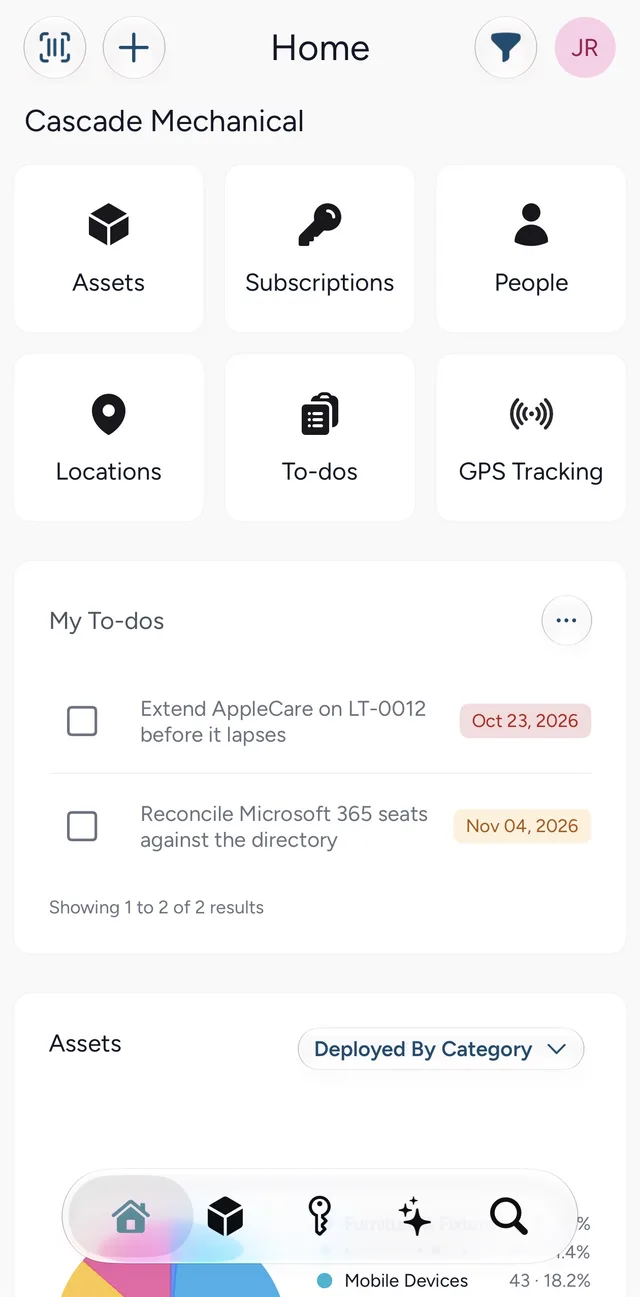
Home is the first screen the app opens on, and the house tab brings you back to it. It shows your organization's name and logo, shortcuts to every part of AssetCenter, and your dashboard cards. Pull down from the top to refresh it.
Shortcuts
The tiles at the top open Assets, Subscriptions, People, Locations and To-dos. A GPS Tracking tile appears too when your organization uses GPS tracking.
A new organization sees a Welcome to AssetCenter card instead of the dashboard. Its Add New button opens the add menu, and the dashboard fills in once you have added your first records.
Dashboard cards
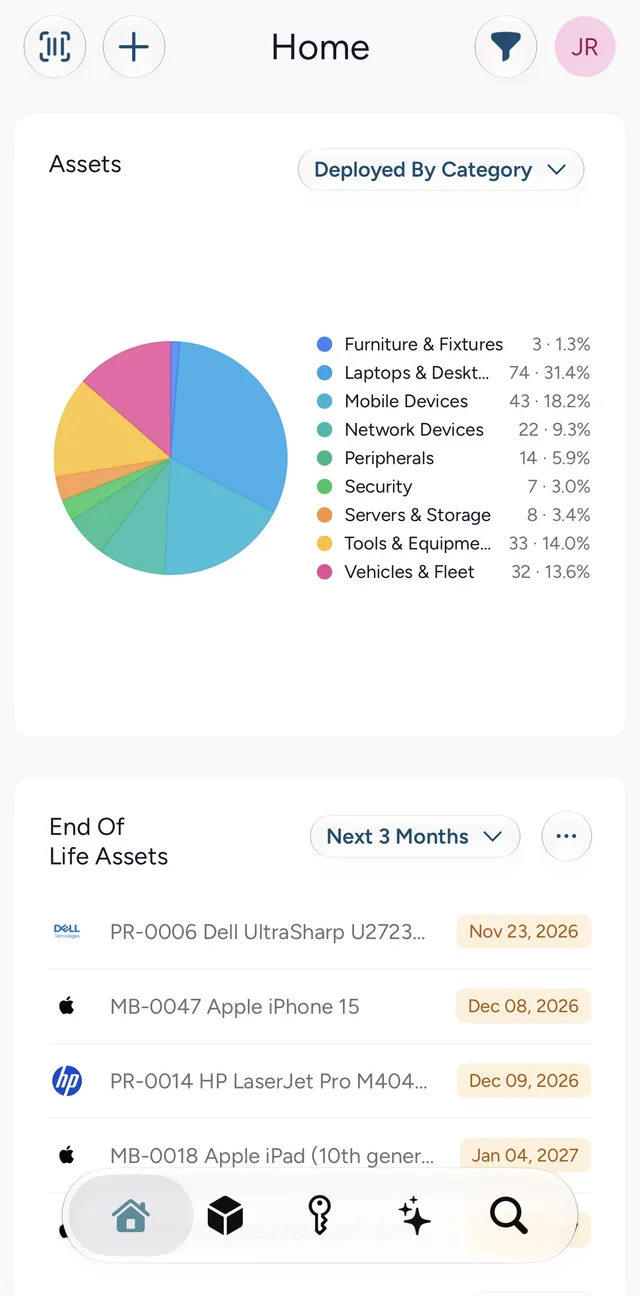
The cards below the shortcuts are the app's versions of the cards on the web dashboard. Several have a menu of options (the ••• button) or a timeframe to choose; the option in use is marked with a ✓.
- My To-dos lists the to-dos assigned to you. Tick the checkbox to complete one, or tap its name to open it. A due date in red has passed; one in amber is still ahead. Paperclip and speech bubble icons mean the to-do has attachments or comments. The menu's Include Completed To-dos shows finished ones too.
- Assets is a chart of your assets. Choose Deployed By Category, Deployed By Manufacturer or Assigned Status.
- End Of Life Assets lists assets reaching the end of their life, from This Month to Next 36 Months, or This Year. The menu's Include Already EOL Deployed Assets adds the ones already past it that are still in use.
- Expiring Warranties works the same way for warranties, and its menu can Include Expired Warranties.
- Expiring Contracts lists subscription contracts coming to an end; its menu can Include Expired Contracts. Tap one to open the subscription.
- Subscription Cost charts what your subscriptions cost, over anything from 3 Months to All Time. Tap a month to see its total, and use the menu to choose which subscription categories are counted.
- Activity lists recent changes across the organization. Tap an entry to open the record it belongs to, with that entry open.
Choosing your cards
Tap the funnel at the top of Home (Customize) to open Customize Home. Tap the circle beside a card to show or hide it, and drag the handle on the right to change the order. Changes are saved as you make them; Reset puts the cards back the way they started, and Done closes the list.
To-dos
The To-dos shortcut opens every open to-do assigned to you, across all your records. For what to-dos are and how they work, see to-dos.
- Tick the checkbox to complete a to-do. It saves straight away; tick it again to reopen it.
- Tap the to-do to open it on the record it belongs to, where you can read its notes, comments and attachments and change it.
- Tap the record beneath it to open that asset, subscription, person or location.
Each to-do shows where it stands: Overdue in red, Due today in amber, then Due tomorrow, a later due date or No due date. Completed to-dos say Completed in green.
The funnel opens To-do options. Include completed to-dos brings finished ones back into the list. If you are allowed to see everyone's to-dos, All organization to-dos shows the whole team's, with who each one is assigned to.
New to-dos are added from a record, not from this screen. See asset records in the app.