 AssetCenter
Getting around the app
Find your way around AssetCenter for iPhone and iPad: the tab bar, the scan and add buttons, lists and filters, the account menu, search and notifications.
Last updated
The tab bar
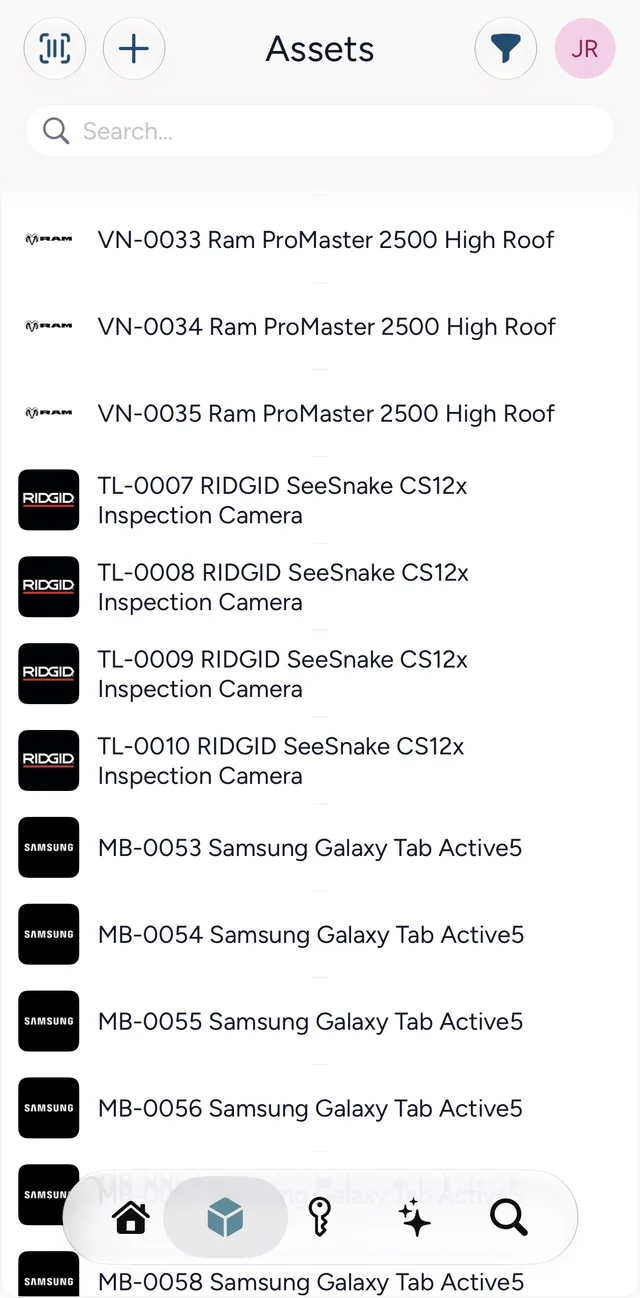
The bar along the bottom of the screen has five tabs, shown as icons:
- House: Home, with shortcuts to every part of AssetCenter and your dashboard cards. See Home and to-dos.
- Cube: the Assets list.
- Key: the Subscriptions list.
- Sparkles: the Asset Assistant, which picks up whatever you were looking at when you tapped it.
- Magnifying glass: Search, across every kind of record.
People, Locations, To-dos and GPS Tracking open from the shortcuts on Home.
The buttons along the top
Home, the lists, To-dos, Search, GPS Tracking and the Assistant share one row of buttons at the top of the screen:
- Scan barcode, the barcode icon on the left, opens the camera to scan an asset tag. See scanning in the app.
- Add New, the + beside it, opens the add menu. See adding records in the app.
- The funnel filters what you are looking at. On a list it opens the list's filters, on To-dos it opens the to-do options, and on Home it is Customize, which chooses and orders your dashboard cards.
- Your initials or photo, on the right, opens the account menu.
An asset, subscription, person or location has its own buttons instead, for the actions you can take on that record. See asset records in the app and subscriptions, people and locations.
Lists
Assets, Subscriptions, People and Locations each open as a list. Type in the Search... box at the top to narrow it down, and tap a row to open the record. More records load as you scroll, and pulling down from the top refreshes the list.
The funnel opens the filters. Every list can be filtered by category and status, and the Assets list adds three more:
- Filter By Assignment: Assigned Person, Assigned Location, Assigned Person & Location or No Assignment.
- Filter By Condition, using your organization's conditions.
- Filter Components, to Include or Don't Include assets that are part of another asset.
Tap a filter to turn it on or off, and Clear beside a group to turn that whole group off. Reset clears every filter and Close goes back to the list. If you open the Assistant from a filtered list, it can summarize the list you are looking at, filters included.
The account menu
Tap your initials or photo in the top right corner to open it:
- My Account, for your name, photo, password, time zone and two-factor authentication. See your account in the app.
- Notifications, described below.
- Organization, Users and Plan & Billing, the administrator settings. See organization settings in the app.
- Switch Organization, if you belong to more than one.
- Log Out, which signs you out straight away, without asking first.
Switching organizations
Switch Organization lists every organization you belong to, with a checkmark beside the current one. Tap another to switch, and Home reloads with that organization's records. Everything you see in the app, including the Assistant and your dashboard, belongs to the organization you are in.
Search
The magnifying glass tab searches assets, subscriptions, people and locations at once. Type at least two characters in Search AssetCenter at the bottom of the screen, and results appear as you type, grouped under Assets, Subscriptions, People and Locations. Asset results show the asset tag with the manufacturer and model; subscription results show the vendor, name and plan. Tap a result to open it.
The app remembers your last six searches under Search History, on your phone only. Tap one to run it again, tap the x beside one to remove it, or tap Clear to remove them all.
For finding records on the web, see finding records.
Notifications
Open Notifications from the account menu. It lists the same notifications as the bell on the web, such as a to-do assigned to you. Switch between All and Unread at the top; the count beside them shows how many are unread.
Tap a notification to mark it read and open the asset, subscription, person, location or to-do it is about. Each notification's menu marks it read or unread, or deletes it; deleting does not ask first. The checkmark at the top marks every notification as read.