 AssetCenter
How barcode asset tracking works: labels, scanners and setup
Learn how barcode asset tracking connects labels to records, which hardware small teams need, and how to pilot...
Quick answer
AssetCenter for iPhone and iPad is a free app on the App Store. It scans barcode and QR tags to open or create assets, and puts your assets, people, locations, subscriptions, to-dos and the Asset Assistant on your phone. It needs iOS 18.2 or later and an AssetCenter account.
In September we released the AssetCenter API, and in October the AssetCenter CLI. Today we're releasing the one most of your team will actually use: AssetCenter for iPhone and iPad, free on the App Store.
Most of what AssetCenter records happens away from a desk. A laptop is handed over at the front door, a generator comes back to the yard, a technician finishes a repair in a plant room. Until now, recording those moments on a phone meant opening AssetCenter in the browser. The app makes it something you do in a few taps, while you're still standing next to the asset.

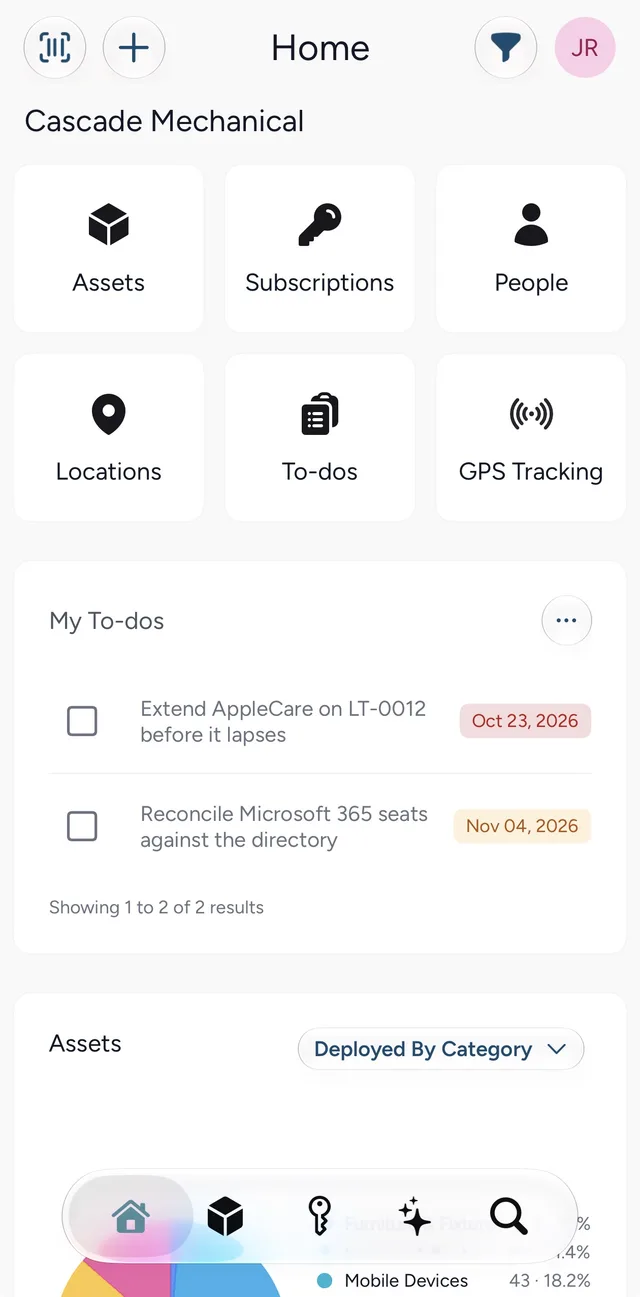
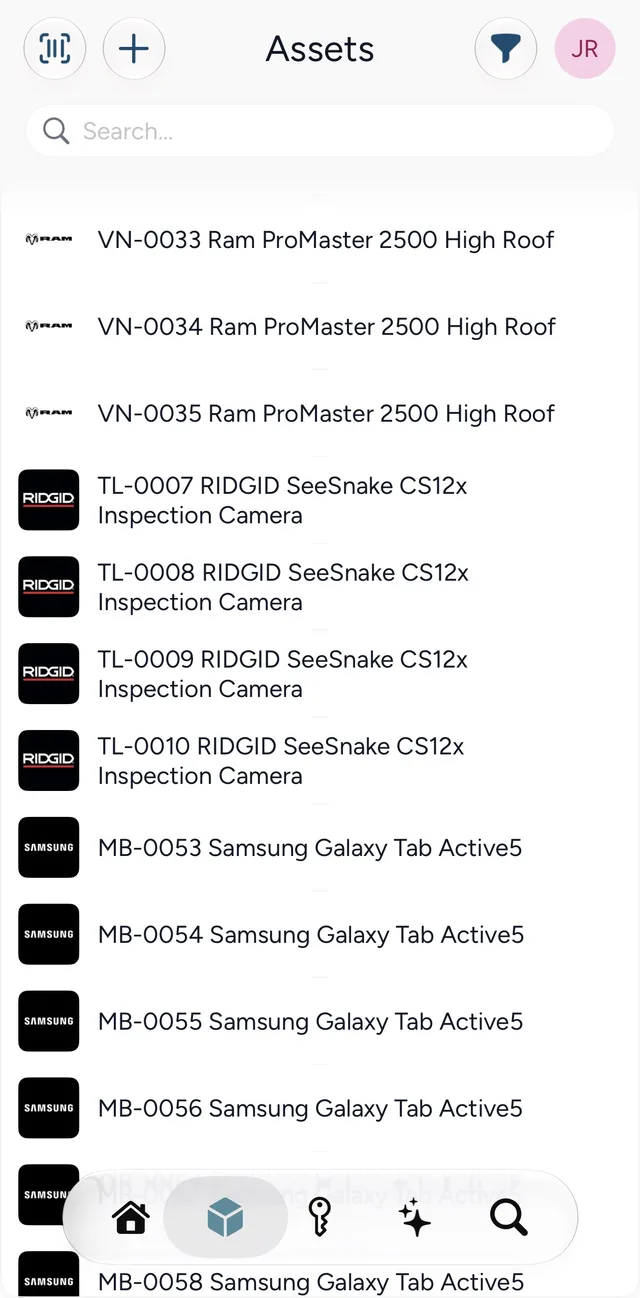
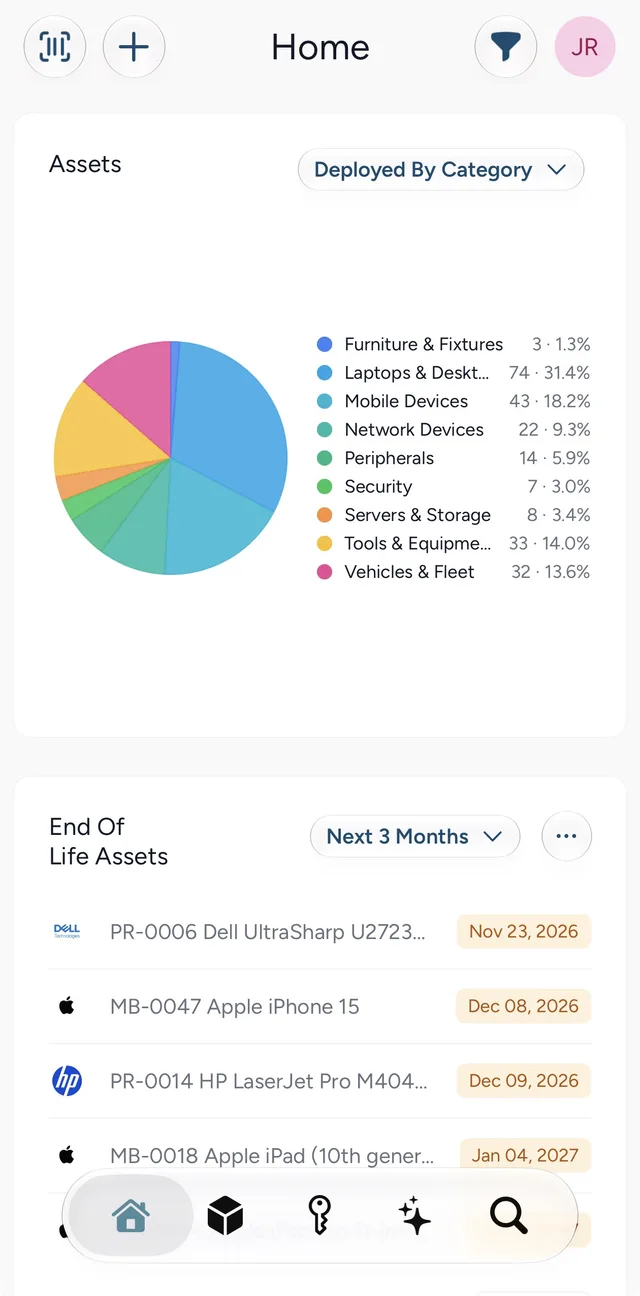
The scan button sits at the top of Home and every list. Point the camera at an asset tag and AssetCenter opens that asset. It reads QR codes and the common barcode formats: Code 128, Code 39, EAN and UPC. The code is matched against both the asset tag and the serial number, so a manufacturer's serial label works as well as a tag you printed yourself.
If nothing matches, the app asks whether you want to create the asset and fills the scanned code into the asset tag field for you. That makes receiving quick: unbox the equipment, scan its barcode, add a name, and the record starts with its real tag instead of one typed in later.
If your assets don't have labels yet, our free asset tag generator prints numbered QR or barcode tags on standard label sheets, and every one of them scans straight into the app. Our guide to asset tags for equipment covers which materials survive which environments.
Open an asset and you see what you'd see on the web: its status, category and tag, who has it and where it belongs, and its subscriptions. Below that is the timeline, the full history of the asset in one place.
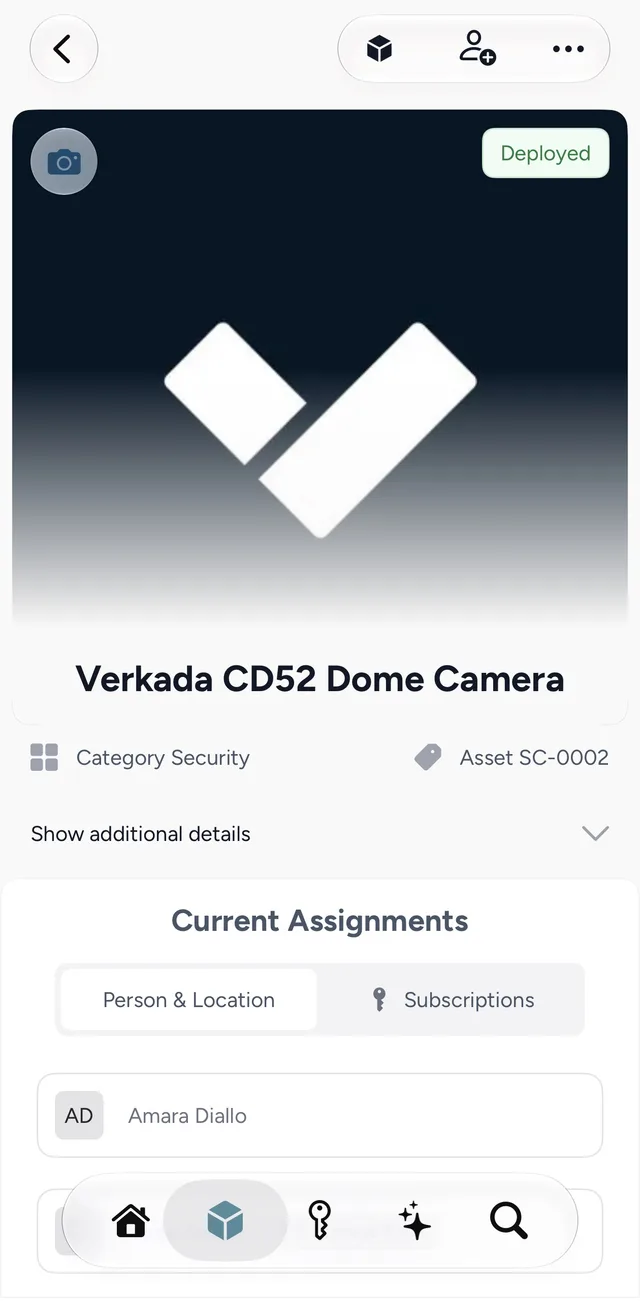
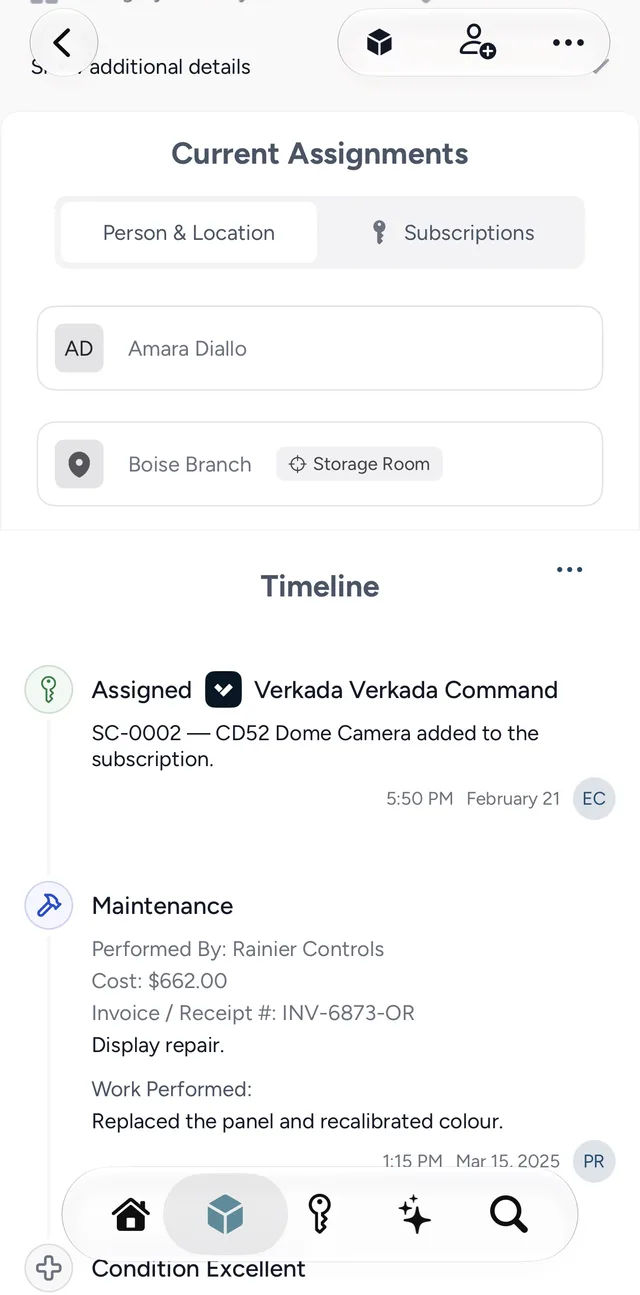
From the asset you can record what just happened: hand it to a different person, move it to another location or into storage, log an event such as maintenance, a repair or an inspection, update its condition, add or renew a warranty, or write a quick note. Attach a photo of the damage or the PDF of the invoice from your phone, and it stays with the entry. To-dos for the work still ahead appear on the same timeline, and the My To-dos list on Home shows everything assigned to you.
Whatever you record in the app appears on the web straight away, and the other way round. There is one AssetCenter account and one set of records, whichever screen you use.
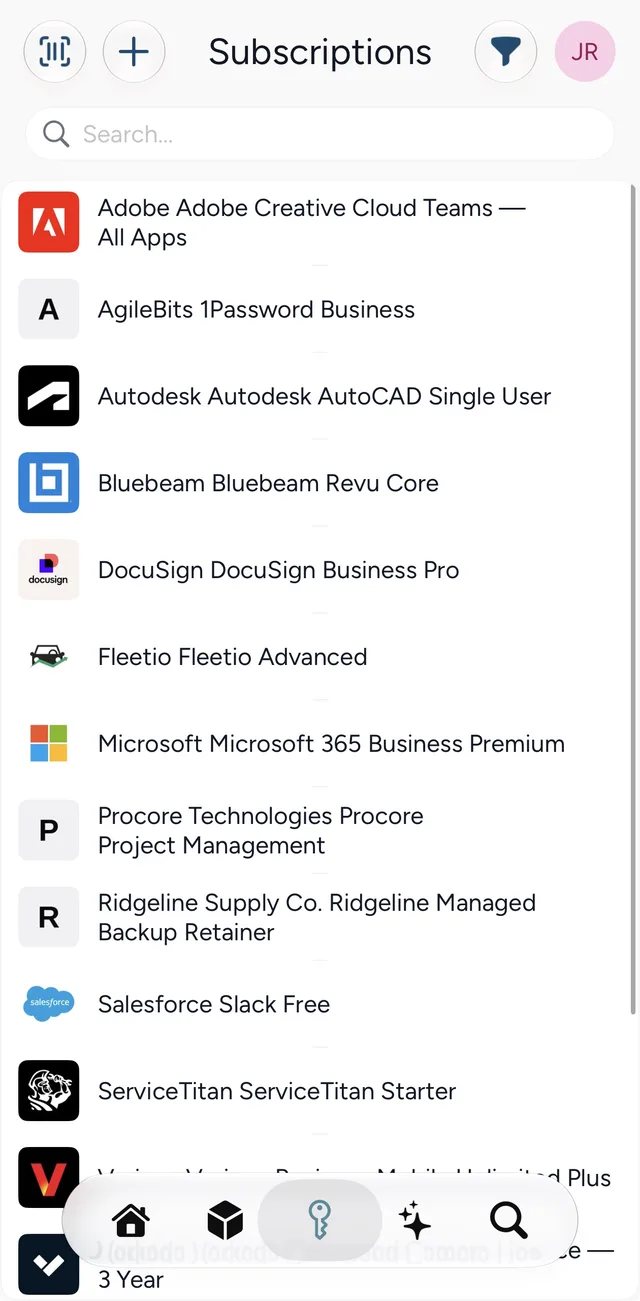
The app isn't only for equipment. Subscriptions, people and locations each have the same record page and timeline, so you can see who holds a seat, what's assigned to a person before their last day, or everything at a site before you walk it.
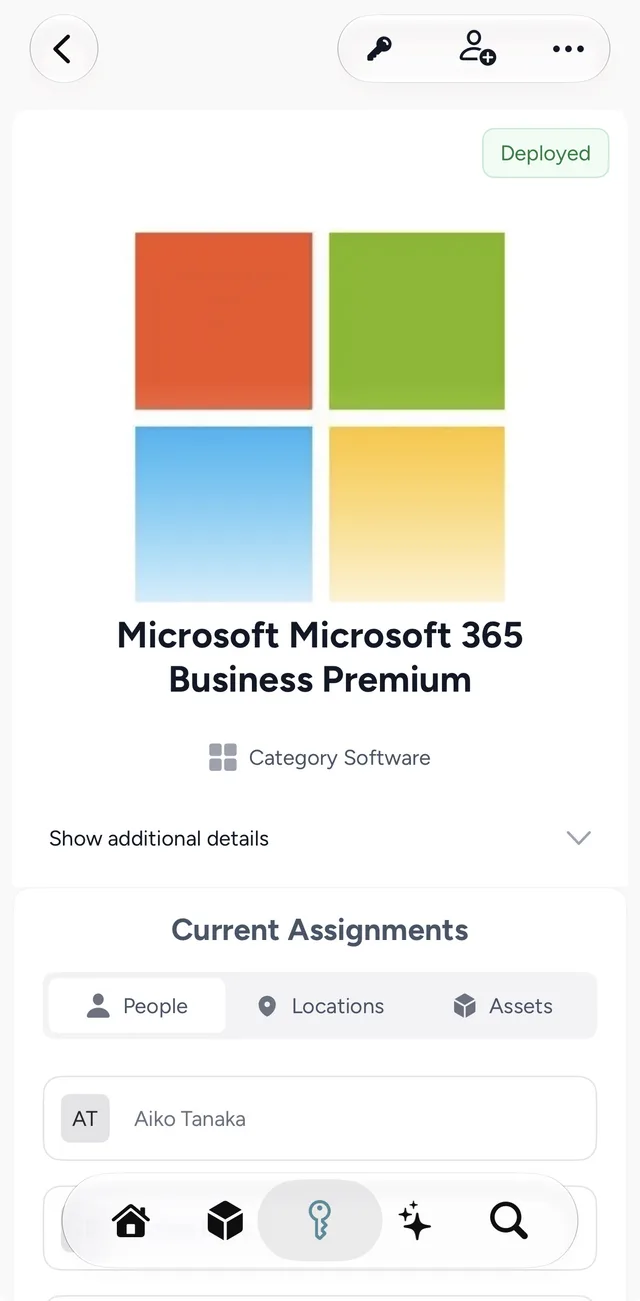
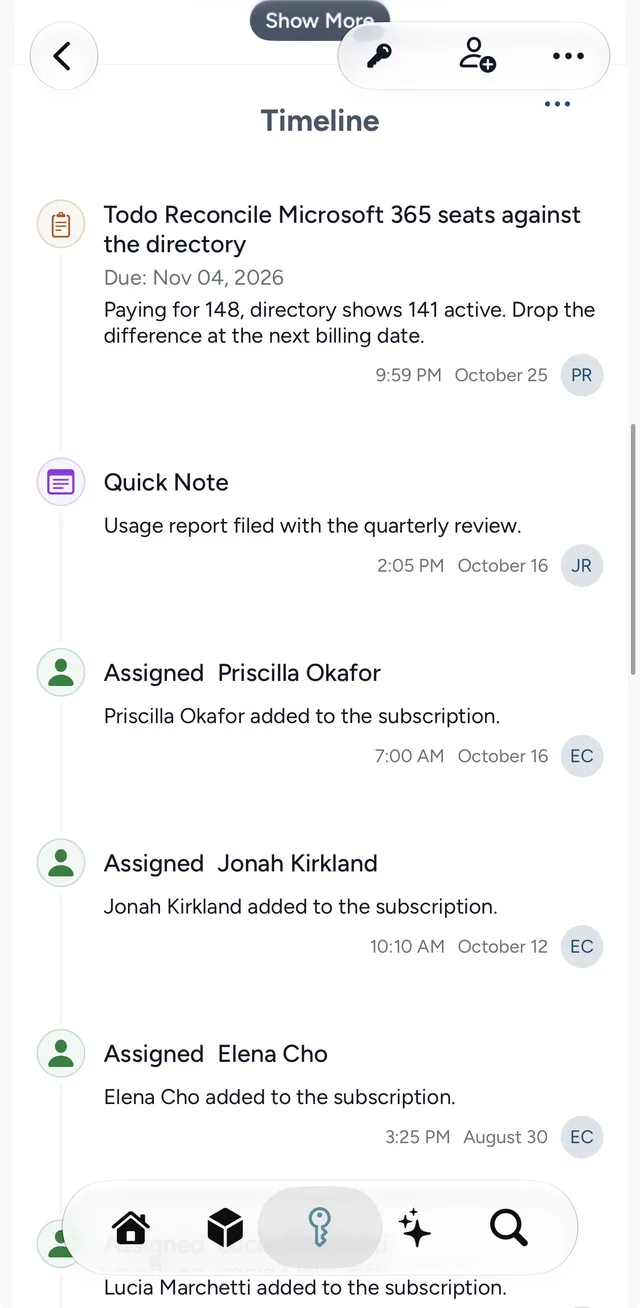
The to-do in that last screenshot is a typical one: the organization pays for 148 Microsoft 365 seats and the directory shows 141 active people, so someone is reminded to drop the difference before the next billing date. Our guide to software license management covers that kind of review in more detail.
The sparkle button opens the AI Asset Assistant. Ask about your inventory in plain language, such as which assets need attention or which subscriptions renew soon, and it answers from your own records. Open it from an asset, person, location or subscription and it suggests questions about that record, such as who an asset is assigned to or when a subscription renews. Open it from a list and it can summarize that list, using the filters you've applied.
Conversations carry over between the app and the web, so a question you start on your phone is there when you get back to your desk. Before your first question, the app asks whether you agree to share your conversations and the relevant records with our AI provider, OpenAI, and it remembers your choice on that device. You can change it at any time from AI Sharing in the assistant's menu.
If your organization uses GPS tracking, the GPS Tracking screen shows where each tracked asset last reported its position, and you can replay the route it took. It's the quickest way to answer "where is the trailer?" from the passenger seat of the truck.
Everything an administrator needs is there too. You can switch between organizations, invite and manage users, set up categories and their custom fields, and choose the event types your team records. Notifications for your account appear in the app, and the plan and billing details for your organization are a tap away.
What each person can see and change follows the permissions they have on the web. The Asset Assistant and other AI features depend on your organization's plan.
There isn't an Android app yet. On Android phones and tablets, AssetCenter installs to the home screen from the browser, and it scans tags with the camera there too. The mobile app page in the user manual has the steps for both.
Download AssetCenter from the App Store, sign in, and scan the tag on one asset. Then record one thing that happened to it today. That's the whole habit the app is built around: the record gets updated where the work happens, by the person doing it.
If your team scans tags already, our guide to barcode asset tracking explains how to set up labels and a scanning routine that keeps records accurate.

Founder & CEO, AssetCenter
Learn how barcode asset tracking connects labels to records, which hardware small teams need, and how to pilot...
Choose durable asset tags for equipment, compare barcode, QR and RFID options, create a numbering system, and...
The AssetCenter CLI puts assets, people, locations and subscriptions in your terminal, and gives AI agents a s...